Installing the Extensions
This page covers how to install the e Builder (extensions) into VSCode and get them ready to use.
Check Your VSCode Version
The extensions require VSCode 1.127.0 or later. Run the following command in a terminal to check your version.
code --version
If it is older than 1.127.0, update VSCode. You can update from the menu with Help → Check for Updates (on macOS, Code → Check for Updates...).
Installation Steps
It is published on the Visual Studio Code Marketplace. Install it using any of the following methods.
-
From the Marketplace page: Open the link above and click Install. VSCode launches and performs the installation.
-
From the Extensions view in VSCode: Open the Extensions icon in the left sidebar and search for
intra-mart e Builder for Accel Platform. -
From the command line:
code --install-extension intra-mart.accelplatform-vscode
You can update the extensions the same way you update any other extension, from the Extensions view in VSCode.
What Gets Installed
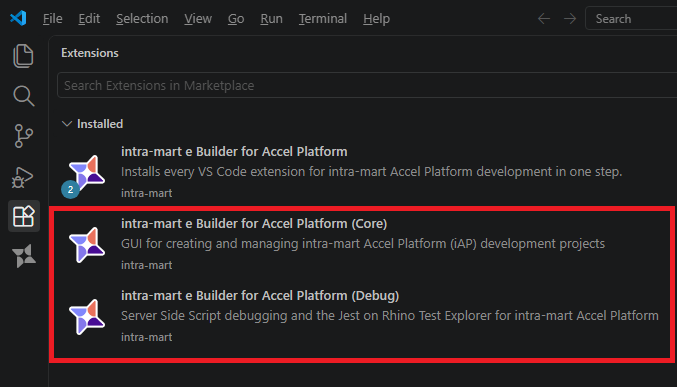
Installing the extension pack (intra-mart e Builder for Accel Platform) installs the following two extensions at the same time.
| Extension | What it does | Corresponding page |
|---|---|---|
| intra-mart e Builder for Accel Platform (Core) | Creating and managing projects, deploying to a server | Creating and Deploying Projects (Core) |
| intra-mart e Builder for Accel Platform (Debug) | Debugging scripts, running tests | Debugging and Testing (Debug) |
You can also install just one of them individually, but we normally recommend installing the extension pack. If you have already installed one of them individually, it keeps working as is.
Accel CLI is bundled with Core, so you do not need to install it separately. Updating the extension also updates the bundled CLI.
The conventional approach of running bunx @intra-mart/accel ... from a terminal is still available as before.
Verification
Installation is complete once you can confirm the following three points.
-
The two extensions in the table above appear in the Extensions view.
-
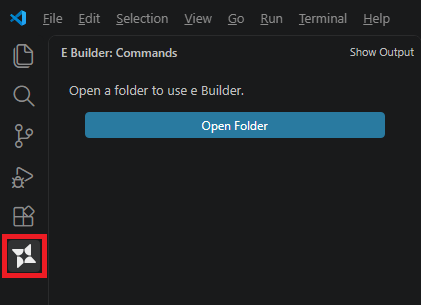
The e Builder icon has been added to the Activity Bar (the column of icons at the far left of the window).
-
With a
.jsfile open, opening the Command Palette and typingintra-martshows intra-mart: Debug Server Side Script in the suggestions.
Basic VSCode operations, such as how to open the Command Palette, are summarized in VSCode Tips for Beginners (open the Command Palette with Ctrl + Shift + P / Shift + Command + P).
This command appears in the Command Palette only while a .js file is open. It does not appear when no file is open or when a different kind of file is open, so this is not an installation failure.
The extensions do not work in an untrusted folder. Opening a project is covered in Creating and Managing Projects.